
Overview
The LeadsBridge integration with Wealthbox enables advisors to automatically sync leads generated from marketing and advertising platforms directly into Wealthbox CRM. This connection eliminates manual data entry and ensures that new leads captured from sources such as Facebook Lead Ads, LinkedIn Lead Gen Forms, Google Sheets, and other tools are seamlessly added to Wealthbox as contacts. The integration is designed to help advisors streamline workflows and maintain accurate, real-time contact records within their CRM.
Key Features
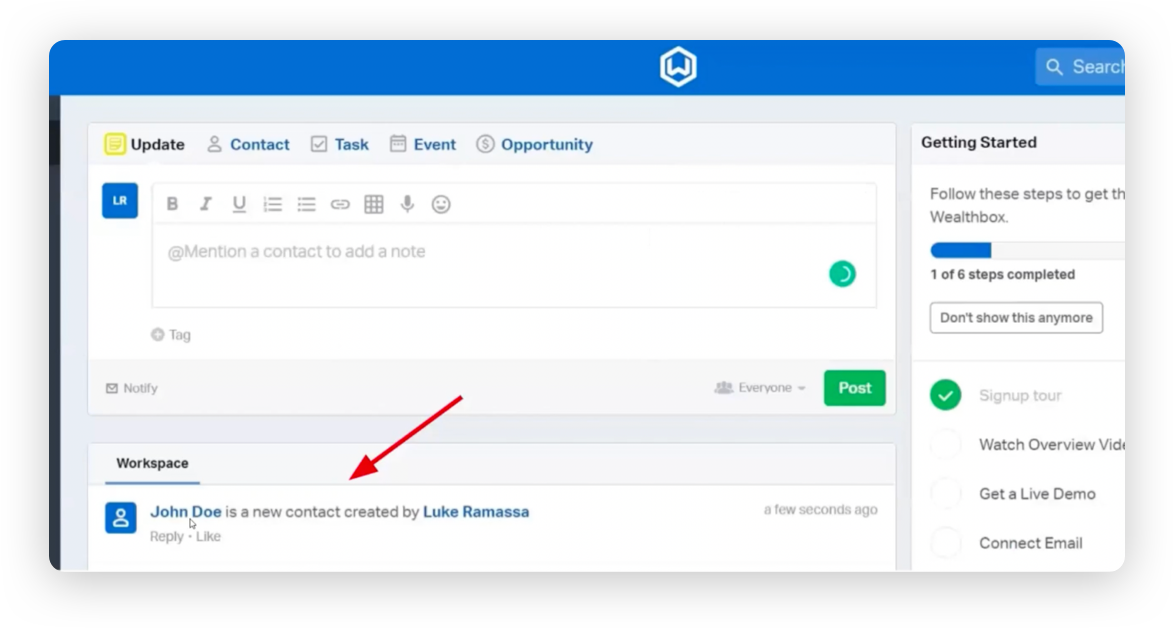
Automated contact creation in Wealthbox: New leads from various marketing platforms are automatically added to Wealthbox as contact records.
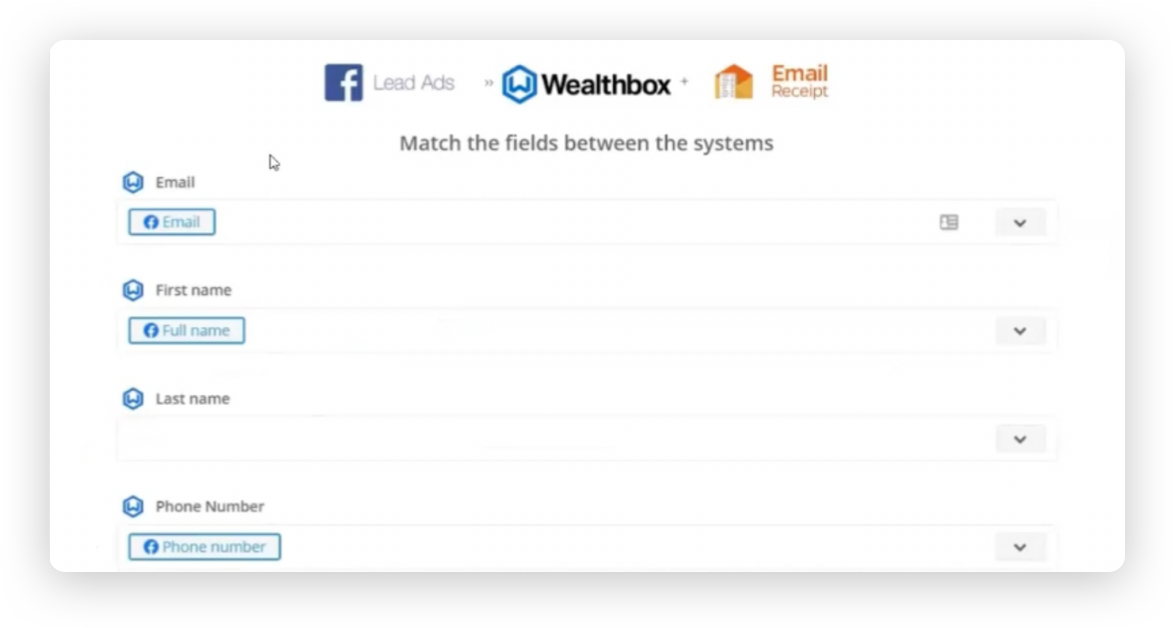
Flexible field mapping: Data fields from the lead source can be customized and mapped to corresponding fields in Wealthbox.
Support for multiple lead sources: Integrates with platforms such as Facebook, LinkedIn, Google Sheets, and more to collect and push leads.
Conditional filtering: Set rules to control which leads are synced into Wealthbox based on form field values or campaign data.
How to enable the integration
In LeadsBridge, create a new bridge and select Wealthbox as the destination.
Choose the platform you wish to pull leads from (e.g., Facebook Lead Ads, LinkedIn Lead Gen Forms).
When prompted, connect your Wealthbox account by pasting an API token generated from your Wealthbox settings.
Set up field mapping to ensure lead information is properly transferred into the desired Wealthbox fields.
Apply filters if needed to control which leads are imported.
Save and activate the bridge to start syncing leads automatically.
How Does the LeadsBridge Integration Work
Once set up, the integration automatically pulls new leads from selected platforms through LeadsBridge and creates contact records in Wealthbox. Leads can be filtered or segmented during setup to ensure only relevant contacts are imported. The system creates new contact records in Wealthbox based on the incoming lead data. Matching logic can be configured to avoid duplicates, typically using the contact's name or email address. Syncing occurs in real time or near real time, depending on the source platform and LeadsBridge's configuration.
Watch the LeadsBride + Wealthbox webinar recording here.
Troubleshooting & FAQs
Why aren’t leads appearing in Wealthbox?
Ensure the bridge is published and active in LeadsBridge.
Verify that field mappings are complete and that no filters are blocking the import.
What happens if the same lead is submitted multiple times?
LeadsBridge may create duplicate contacts unless matching logic is applied. Configure mapping rules to match by email or name when possible.
Can I control which leads sync into Wealthbox?
Yes. Filters can be set within the bridge setup to include or exclude leads based on specific conditions.