
Overview
The Holistiplan integration with Wealthbox allows advisors to send client data directly from Wealthbox to Holistiplan for automated tax return analysis and financial planning insights. Holistiplan simplifies the process of reviewing and interpreting client tax returns, helping advisors deliver more efficient and personalized planning strategies.
This article covers the legacy Holistiplan integration.
For the
AI connector integration go here.
Key Features
"Send To" functionality: Seamlessly send Wealthbox contact data to Holistiplan with just a few clicks
Automatically transfer key client details from Wealthbox to Holistiplan for streamlined onboarding
Quickly access Holistiplan’s tax planning tools and reports using imported Wealthbox data
Improve accuracy and efficiency by reducing manual data entry
How to Enable the Integration
Users can enable the Holistiplan integration with Wealthbox by following these steps:
Step 1: Enable the Integration in Holistiplan
Log in to your Holistiplan dashboard.
Navigate to the "Settings" menu and select the "Integrations" sub-menu.
-
Click "Enable Wealthbox Integration."
The button will change color from navy to red, indicating that the feature is enabled.
Step 2: Generate an API Key in Wealthbox
Log in to your Wealthbox account.
Click the three stacked dots (top-right corner of your dashboard) and select "Settings."
In the left-hand menu, click "API Access."
Click the "Create Access Token" button.
-
Enter a label for your token (e.g., Holistiplan) in the "Label" field and click "Save."
This will generate a unique access token that serves as a secure connection between your Wealthbox and Holistiplan accounts.
Important: Do not share this token, as it acts as a secure credential tied to your account.
Right-click to copy the newly created token.
Step 3: Complete the Integration in Holistiplan
In a separate tab or window, return to your Holistiplan dashboard.
Click on your user profile name in the top-right corner and select "My Account / Password."
-
Paste the API key you copied from Wealthbox into the "API Key" field.
Tip: Double-check that no extra spaces or characters were copied into the field, which could cause the key to fail.
Click "Establish Wealthbox Connection."
Once the connection is successful, you’ll see a message in green text confirming:
Your connection between Holistiplan and Wealthbox is now complete, and you can begin using the integration.
How Does the Holistiplan Integration Work?
Once the Holistiplan integration is enabled in Wealthbox, users can import and update client data between the two platforms to support streamlined tax planning and household management.
Navigate to the Import Tool
From your Holistiplan dashboard, go to Administration > Wealthbox Import.Choose Contact Types
Select the type of contacts you want to import:
Client, Past Client, Prospect, Vendor, Organization, or All Types.
For faster performance, it’s best to import a subset at a time.-
Assign Households
For each imported contact, assign them to:A new household, if no match exists
An existing Holistiplan household, if a match is found
➤ To link spouses in the same household: import the primary contact first, then create a new Holistiplan client for the second spouse, and assign them to the same household.
Complete the Import
Select the contacts and click “Load from Wealthbox”. A success message will confirm when contacts have been imported.
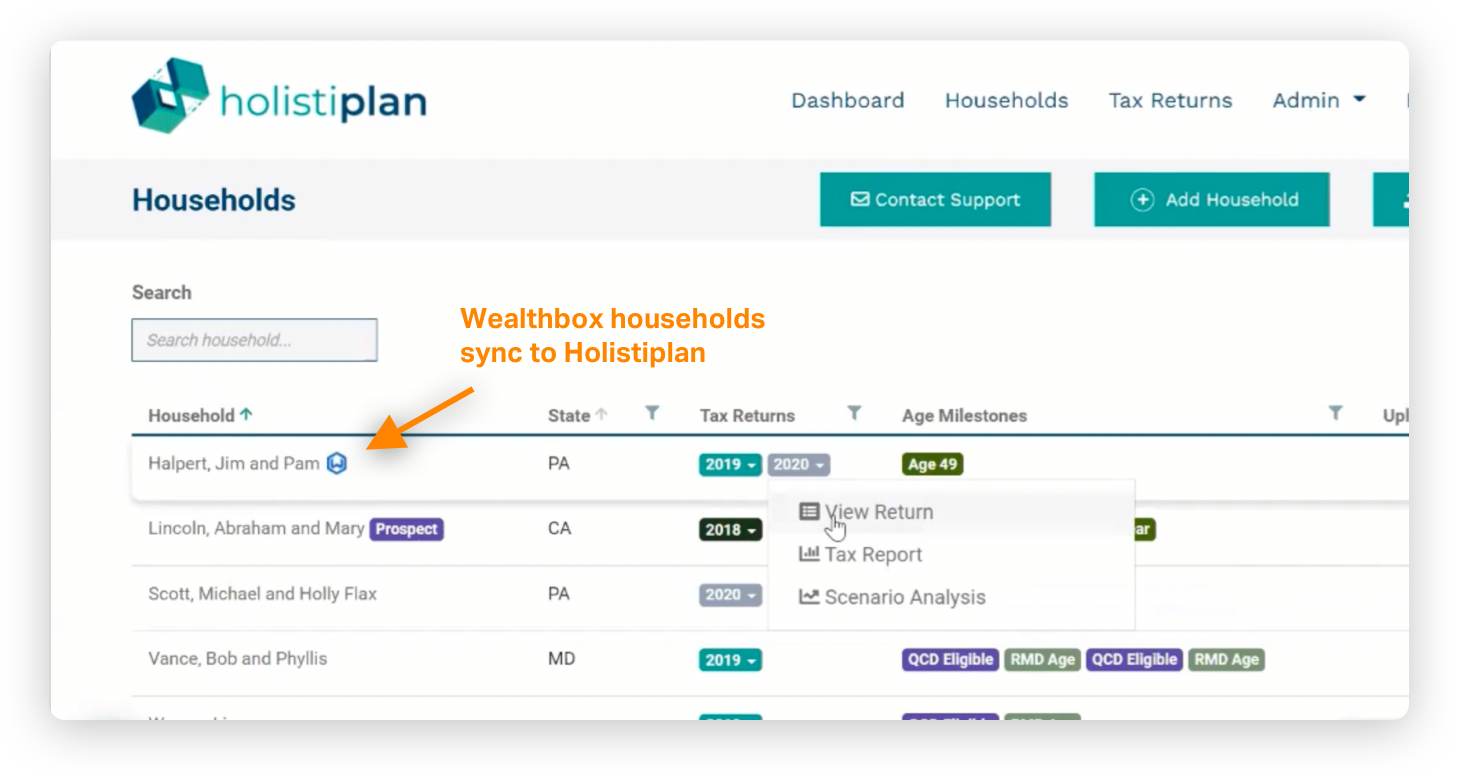
Once imported, a Wealthbox icon will appear next to any household linked between the two systems.
Updating Contact Data from Wealthbox
Holistiplan does not automatically sync updates from Wealthbox. To update client data:
Go to Administration > Wealthbox Import in Holistiplan.
Select the contact type and then choose “Contacts with family already in Holistiplan.”
Select the relevant contacts and click “Update from Wealthbox” (top-right corner).
A confirmation message will appear once the updates are successful.
Troubleshooting & FAQs
Q: What does the Holistiplan integration with Wealthbox allow me to do?
A: The integration enables seamless data sharing between Holistiplan and Wealthbox, helping advisors streamline workflows by connecting tax planning insights with client records in Wealthbox CRM.
Q: Where do I get the API key needed to complete the integration?
A: In Wealthbox, go to Settings > API Access, click Create Access Token, name your token (e.g., “Holistiplan”), and save it. Then copy the generated key and paste it into Holistiplan under My Account / Password.
Q: Why isn’t my API key working in Holistiplan?
A: Double-check that no extra spaces or characters were added before or after the key when pasting it. These can invalidate the token and prevent a successful connection.
Q: Does Holistiplan automatically update when I change client information in Wealthbox?
No, Holistiplan does not automatically sync updates from Wealthbox. To update client data, you must manually use the “Update from Wealthbox” feature within the Holistiplan Wealthbox Import tool.
Q: What happens if a contact in Wealthbox is missing information?
Contacts without required fields (like name or email) may fail to import. Holistiplan will provide a message identifying any contacts that could not be loaded, allowing you to update those records in Wealthbox and re-import them without creating duplicates.