
Overview
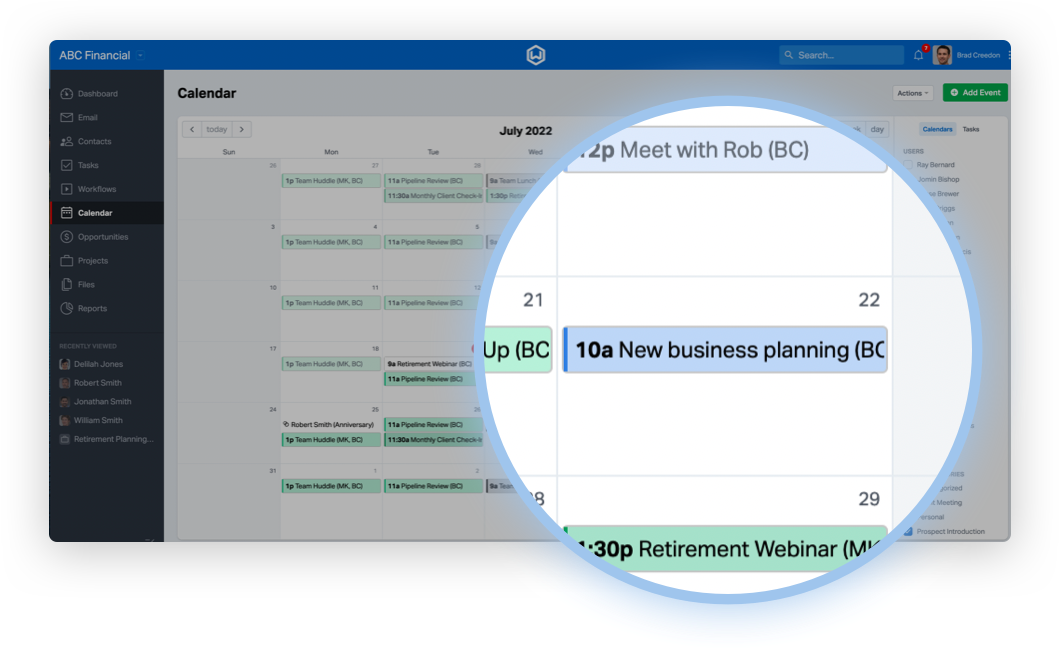
Wealthbox integrates with Google Calendar through a two-way sync. Users can add, modify, or delete events on either calendar, and these changes will automatically sync across both calendars. This integration allows users to connect their Google Calendar with their Wealthbox calendar seamlessly and bidirectionally.
Key Features
Two-Way Calendar Sync: Add, update, or delete events in either Google Calendar or Wealthbox, and your changes will automatically sync across both platforms within minutes.
Customizable Sharing Permissions: Control who can see your synced events by selecting default permissions—choose Only Me for private visibility or Everyone to share your calendar with your entire workspace.
Flexible Calendar Selection: Connect an existing Google Calendar or create a new one dedicated to Wealthbox events, giving you full control over how your schedule is organized and displayed.
How to Enable the Integration
Log in to your Wealthbox account.
Click the three dots in the upper right-hand corner.
Select Integrations.
Select "Settings" next to Google Calendar.
Click “Authorize Google Calendar.”
Choose the Google account that has the calendar you'd like to sync.
- Click "Continue" to accept the terms for connecting the calendar and enabling Wealthbox access.
You should receive a pop-up message stating "Google Authorization successful."
- Select your Default Permissions. For reference, "Only Me" means only you can see your synced calendar events, while "Everyone" allows all users in your workspace to see your calendar events.
- Click "Enable Authorization" to finalize the process.
Please note: You will be asked to confirm the Google account you want to sync with or if you want to create a new Google calendar. Keep in mind that if you choose to create a new Google calendar, you will need to remember to select this new calendar when you create an event from Google for the event to sync to the Wealthbox calendar.
Troubleshooting & FAQs
Q: Why can't my colleagues see my calendar events?
A: Check your Google Calendar Settings to ensure your teammates are included in the default permissions. Also, make sure your colleagues have your name selected under "Users" and that "Uncategorized" is checked under "Event Categories" on the calendar page.
Q: Can I sync more than one calendar to Wealthbox?
A: No, Wealthbox currently supports syncing only one calendar.
Q: How do I disconnect my calendar?
A: Navigate to the three-dot menu > Integrations > Google Calendar, then go to Settings and click "Disable Google Calendar Integration." Note: Previously synced events will remain on the calendar page for historical reference.