
Overview
PreciseFP is an automated and customizable data-gathering solution that helps financial advisors capture client data to be used in client onboarding and to populate an advisor’s CRM. The integration with Wealthbox is a bidirectional syncing of contacts between the two platforms, eliminating the manual data entry of new contacts.
🔗 Click Here to Watch a Webinar on Meeting Prep Workflow with Precise FP + Wealthbox
Key Features
-
Quick Contact Importing: Seamlessly export client and prospect records from PreciseFP to Wealthbox—or import existing contacts from Wealthbox into PreciseFP—eliminating manual data entry.
-
Smart Matching on Export: Choose whether to create a new Wealthbox contact or sync with an existing one during the export process, giving you full control over how records are managed.
-
Filtered Import Logic: Only Wealthbox contacts marked as Head of Household with a Primary email address will appear in PreciseFP’s import search, ensuring clean and relevant data transfers.
How to Enable the Integration
-
Click on Settings on the left side navigation within your PreciseFP account.
-
In the Integrations tab, click the Enable button for Wealthbox.
-
You'll then be prompted to enter your Wealthbox credentials.
-
This integration will allow you to export data to Wealthbox or import data from Wealthbox.
How Does the PreciseFP Integration Work
To export to Wealthbox
- Open a client or prospect record. Click on the Export button from the top navigation. Select Wealthbox from the dropdown options.

- Next you will have the option to sync this client with an existing client if one exists in Wealthbox, or you can create a brand new record. After you’ve made your choice click on the Export button.

- Once the export completes you will see a notice that the client’s data has been successfully exported.

To import data from Wealthbox into PreciseFP
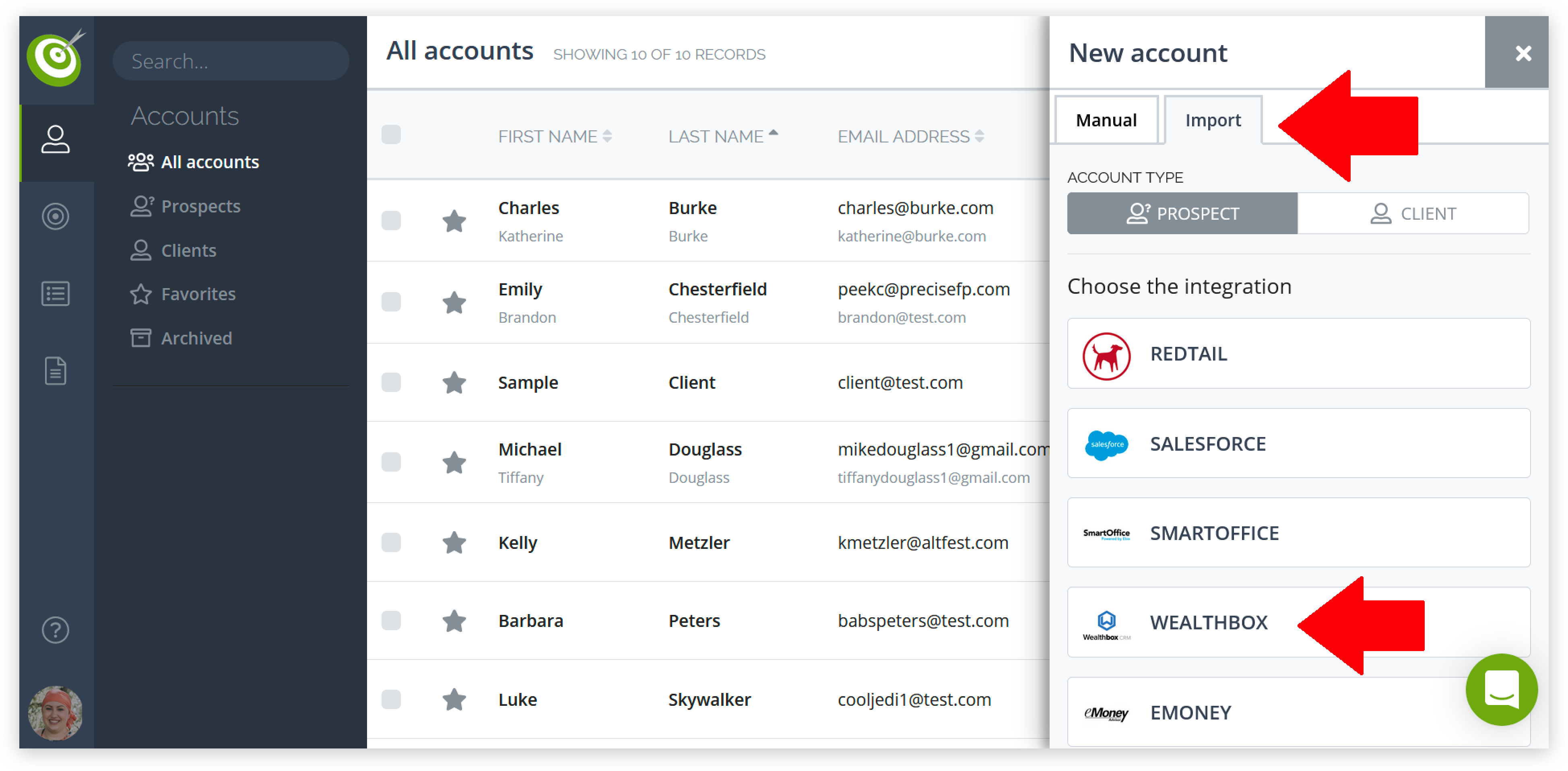
- Click on clients on the left side navigation then click on the Import button from the top navigation and select Wealthbox from the drop down menu.

- From the import popup, you can search for a Wealthbox contact by last name. Keep in mind the contact record in Wealthbox must be the "Head" of the household and include an email address marked as "Primary". If one or both of those are missing the contact will not show up as an available record to import.

- Once you enter your clients' last names, they should appear in the list below. Click the radio button to the left of their names, then click the Import button.

-
Once the import is complete, you will be shown the sections from Wealthbox that were successfully imported. Click the close button to be taken into their record.


Troubleshooting & FAQs
Q: Can I choose to create a new contact in Wealthbox or link to an existing one when exporting from PreciseFP?
A: Yes. When exporting a client or prospect from PreciseFP, you'll have the option to sync with an existing Wealthbox contact or create a new contact record before completing the export.
Q: Why isn’t my Wealthbox contact showing up when I try to import into PreciseFP?
A: To appear as an importable contact, the Wealthbox record must be marked as the Head of Household and include a Primary email address. If either of these is missing, the contact won't show up in your import search results.
Q: How do I start syncing data between PreciseFP and Wealthbox?
A: In PreciseFP, go to Settings > Integrations, then click Enable next to Wealthbox. After entering your Wealthbox credentials, you'll be able to export to or import data from Wealthbox as needed.